Mattermost Archiver Plugin — User Guide
Mattermost has been shut down
The Helmholtz Mattermost instance is no longer available. This guide is kept as a reference for the transition to Matrix and for anyone operating the plugin on their own Mattermost instance.
This plugin lets you export messages you can access in Mattermost into a ZIP file.
It supports:
- Export the current channel (via a channel header button)
- Export a multi-channel archive (via a picker modal)
No export option?
Export of teams and channels is only activated for team and channel admins. Direct and group messages can be exported by people involved in the conversation.
Privacy Note
Treat exported ZIPs as sensitive data (they may contain confidential messages, files and privacy related information).
1) Export the current channel
Available for team and channel admins. Direct and group messages can be exported by members of the channel.
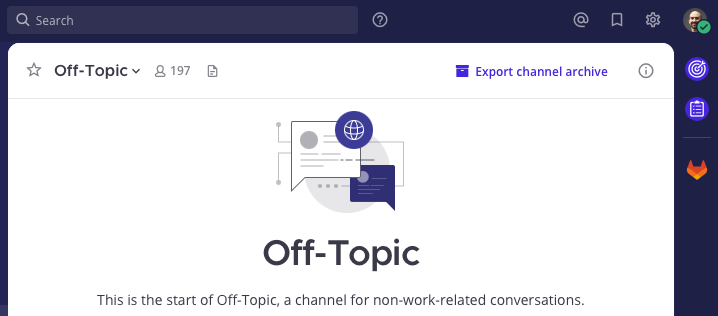
- Open the channel you want to export.
- Click Export channel archive in the channel header.
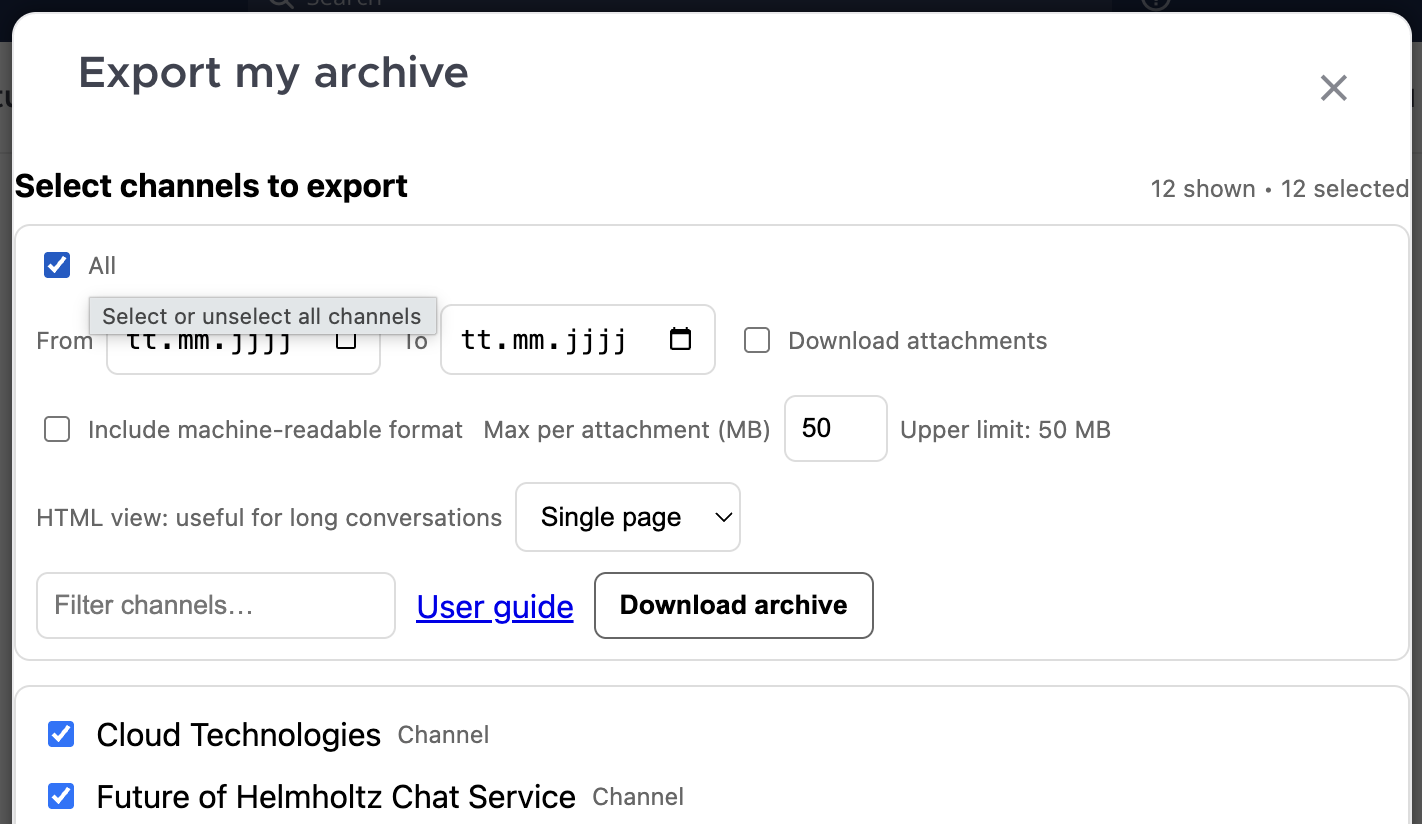
- Configure options in the export picker (date range, attachments, HTML view, …).
- Click Download.
2) Export this team
Available for team admins.
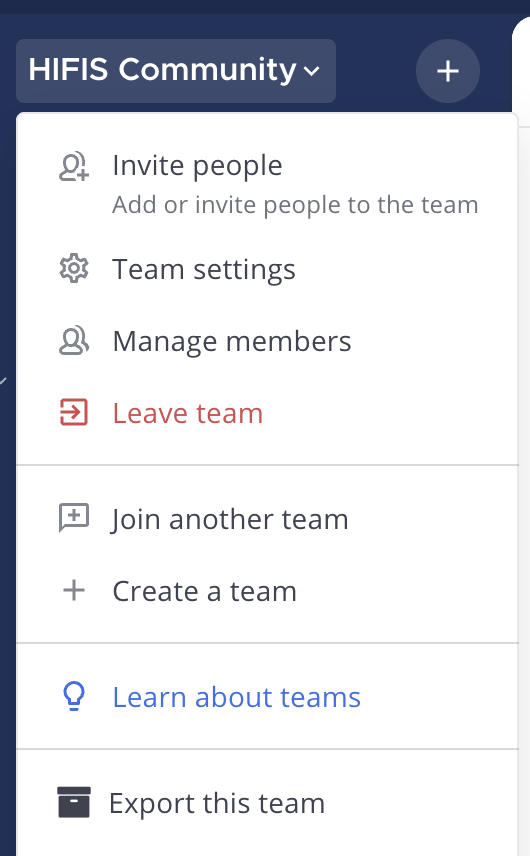
- Open the Team menu of any of your teams you have access to (top-left).
- Click Export this team.
- In the picker, select one or more channels.
- Choose export options.
- Click Download.
3) Export options (what they mean)
Date range
- From: first day to include (inclusive, UTC)
- To: last day to include (inclusive, UTC)
Tip: If your export is very large or slow, narrow the date range.
Attachments
- When enabled, each channel stores uploaded files in its
data/.../files/folder. The same attachment copy is used by HTML, JSON/NDJSON, and JSONL outputs. - The system admin can disable attachments entirely, and can enforce a maximum size per file.
- If some files are skipped due to the size limit, the ZIP includes
skipped_attachments.jsondescribing what was omitted.
Human-readable format (HTML)
When enabled, the export includes a human-friendly HTML view you can open locally.
- Single page: one HTML file per channel (no chunk files). This format might not be ideal for very long channels. But it is suitable for “find in page” search.
- Paginated: multiple static HTML pages (Newer/Older navigation)
- Lazy loading: an offline viewer that loads older messages as you scroll. Lazy mode generates a
chunks/folder inside the ZIP (this is expected for lazy mode)
Machine-readable format (JSON)
If the system admin allows it, you may see a checkbox like Machine-readable format (JSON). You can choose between two formats:
- Multiple channel-specific files (JSON/NDJSON) creates separate channel, post, and thread files for custom processing. Post records retain the source user ID, username, display name, and email without transforming them. Attachments include archive-relative
file_pathsthat point directly to files underdata/; - One global Mattermost migration file (JSONL) creates
mattermost-import.jsonl, structured for loading all selected content into another Mattermost instance. However, we do not guarantee that it can be imported directly into a new Mattermost instance without any additional modifications. It is up to you to continue from this point.
The identity choice below applies only to the global JSONL file. Channel-specific JSON/NDJSON files always retain the original usernames and emails.
For the global JSONL file, choose how user identities are represented:
- Keep display names but modify emails and usernames creates deterministic archive accounts and avoids conflicts with actual email addresses. This is the default.
- Keep original usernames and emails preserves those values exactly. Use this only when the destination should match existing accounts or retain the original identities; duplicate usernames or emails on the destination may require import preparation.
Both JSON outputs cover the same selected channels and messages. Only the file structure and intended use differ.
What you’ll see in the ZIP depends on which export you run:
- Channel-specific files:
index.jsonidentifies the exporting user (including username, email, and display name) and contains the exported teams, their channels, and directory paths. Each channel directory underdata/containschannel.json,posts.ndjson, andthreads.ndjson, for both single- and multi-channel exports. - Each
team.jsonpreserves the Mattermost team fields and adds the team-admin profiles once for the team. - Each
channel.jsonpreserves the Mattermost channel fields and adds a readable channel type, archived status, team metadata, creator profile, channel-admin profiles, and paths to that channel’s HTML, posts, threads, and attachments. - Global migration file: root-level
mattermost-import.jsonlfor both export kinds
4) What’s inside the ZIP
Single-channel export
Typical contents:
index.html(when Human-readable format (HTML) is selected; entry point)- One channel folder under
data/teams/...ordata/direct-messages/...containing: index.html(when Human-readable format (HTML) is selected)files/…(optional)channel.json,posts.ndjson,threads.ndjson(when Multiple channel-specific files (JSON/NDJSON) is selected)team.jsonin the parent team directory (for team channels)skipped_attachments.json(only if a max-size limit is enabled and some files were skipped)index.json(when Multiple channel-specific files (JSON/NDJSON) is selected)mattermost-import.jsonl(when One global Mattermost migration file (JSONL) is selected)
Multi-channel export
Typical contents:
index.html(when Human-readable format (HTML) is selected; entry point)- One folder per selected channel under
data/teams/...ordata/direct-messages/...containing: index.html(when Human-readable format (HTML) is selected)files/…(optional)channel.json,posts.ndjson,threads.ndjson(when Multiple channel-specific files (JSON/NDJSON) is selected)- One
team.jsonin each exported team directory skipped_attachments.json(only if a max-size limit is enabled and some files were skipped)index.json(when Multiple channel-specific files (JSON/NDJSON) is selected)mattermost-import.jsonlat the ZIP root (when One global Mattermost migration file (JSONL) is selected)
5) Opening the HTML export
- Ensure Human-readable format (HTML) was selected, then unzip the archive.
-
Open the HTML entry point in a browser:
-
Single- or multi-channel export: open the root
index.html
Tip: For lazy-loading HTML exports, keep the entire folder structure (including chunks/) together.
6) Troubleshooting
“Export failed: 401 unauthorized”
You are not logged in (or your session expired). Refresh Mattermost and try again.
“Export disabled” / “forbidden”
Access is restricted to certain roles. Team exports are limited to team admins and channel exports in teams are limited to both channel and team admins. Direct and group messages outside of teams can be archived by members of the conversation.
If your team or channel has no available admin please contact us via support@hifis.net.
The export option isn’t visible
- The plugin feature may be disabled for your account.
- In some environments, UI placement can vary by Mattermost version.
The ZIP is huge / slow to download
- Narrow the date range.
- Disable attachments.
- Consider Paginated or Lazy HTML for very large channels.